
ERP Cutover Planning: How to Plan a Smooth Go-Live
Months of ERP work come down to a few days.
The cutover is the moment you stop running the business on the old system and start running it on the new one. Done well, it is a planned, rehearsed, slightly boring weekend. Done badly, it is a week of shipping by hand, inventory nobody trusts, and customers asking where their orders are.
This guide explains how to plan an ERP cutover: choosing the date, freezing and loading data, the cutover checklist, go/no-go criteria, and what to do in the first days after go-live.
What Is an ERP Cutover?
The cutover is the set of steps that moves the business from the old system to the new one: stopping transactions in the old system, loading final balances and open transactions into the new one, verifying them, and starting live work.
A cutover plan lists every step, who does it, when, how long it takes, and how you will know it worked. It is written well before go-live and rehearsed at least once.
Cutover Approaches: Big Bang, Phased, or Parallel
| Approach | How it works | Trade-offs |
|---|---|---|
| Big bang | Everything moves to the new system at once | Simplest to manage and no temporary integrations, but every process changes on the same day |
| Phased | By location, entity, or function, in stages | Lower risk per step, but temporary integrations between old and new systems may be needed |
| Parallel run | Both systems run side by side for a period | Comparable results, but double entry is exhausting and error-prone |
Most mid-market manufacturers and distributors choose a big bang or a phased cutover by location. Full parallel running is rarely practical for order-heavy businesses, because every order, receipt, and shipment would have to be entered twice.
Choosing the Cutover Date
- Start of a fiscal period. Cutting over at the start of a month, or ideally a quarter, keeps the accounting clean.
- Avoid your peak season and the year-end close. Do not combine go-live with year-end tax and audit work.
- Allow a quiet period just before cutover, with fewer receipts, fewer new orders, and no major promotions, so there is less in transit.
- Plan staffing. Key people should be available for the cutover and the two weeks after it. No vacations.
- Check external deadlines, such as a vendor’s end-of-support date, and leave margin. See our Dynamics GP end-of-life guide for an example.
Data: What Moves and When
Most data moves in two waves:
- Master data, loaded and validated weeks before cutover: items, customers, vendors, price lists, bills of material, routings, locations, and the chart of accounts. Changes made in the old system after this load are tracked and re-applied.
- Balances and open transactions, loaded during cutover: inventory quantities by location and lot, open sales orders, open purchase orders, open work orders, open AR and AP, and general ledger balances.
Detailed history usually stays in the old system, read-only, or in an archive. See data migration: what to bring, archive, and leave behind.
Inventory at Cutover
Inventory is the hardest balance to get right. The cleanest approach is a full physical count, or a count of the highest-value locations, as close to cutover as possible, with receiving and shipping frozen while the count is loaded. If you run a strong cycle counting program beforehand, the cutover count is faster and has fewer surprises.
Rehearse the Cutover
Run at least one full rehearsal, a “mock cutover,” using a copy of real data:
- Time every step, especially data loads and validation
- Reconcile loaded balances against the old system: inventory, AR, AP, and the trial balance
- Process a day of real transactions in the test environment: orders, receipts, picks, shipments, production, invoices
- Fix what breaks, then rehearse again if the first run had serious problems
See why you should use an ERP sandbox and testing scenarios that catch problems before go-live.
ERP Cutover Checklist
Two to Four Weeks Before
- Final master data loaded and validated
- Mock cutover completed and timed
- All users trained in their roles, with practice in the test environment
- Printers, label printers, scanners, and devices tested in place
- Trading partners and carriers notified of any EDI or integration changes
- Customers and vendors told about any changes they will notice, such as new invoice formats
Cutover Window
- Freeze transactions in the old system at an agreed time
- Complete final shipments and receipts, or hold them
- Count inventory and load quantities
- Load open orders, open AR and AP, and ledger balances
- Reconcile each load against the old system and sign off
- Switch integrations, EDI connections, and the website to the new system
- Run a smoke test: one order through pick, pack, ship, and invoice
Day One
- Support team on the floor, in the warehouse, and in the office
- A single place to log issues, with owners and priorities
- Twice-daily check-ins to review issues
Go/No-Go Criteria
Decide in advance what must be true to go live, and who makes the call:
- Inventory, AR, AP, and trial balance reconcile within agreed tolerances
- Critical processes work end to end: order to cash, procure to pay, and, for manufacturers, plan to produce
- EDI and key integrations send and receive correctly
- No unresolved critical defects
- A rollback plan exists, even if you never expect to use it
The First Days After Go-Live
Expect a dip in speed for a week or two while people get used to new screens and processes. Watch:
- Orders shipped on time compared with normal
- EDI exceptions and rejected transactions
- Inventory adjustments, which point to data or process problems
- Open issues by priority
See the first 180 days after go-live.
See Bizowie in Action
Real screens from Bizowie, not mockups. Click any screen to enlarge.
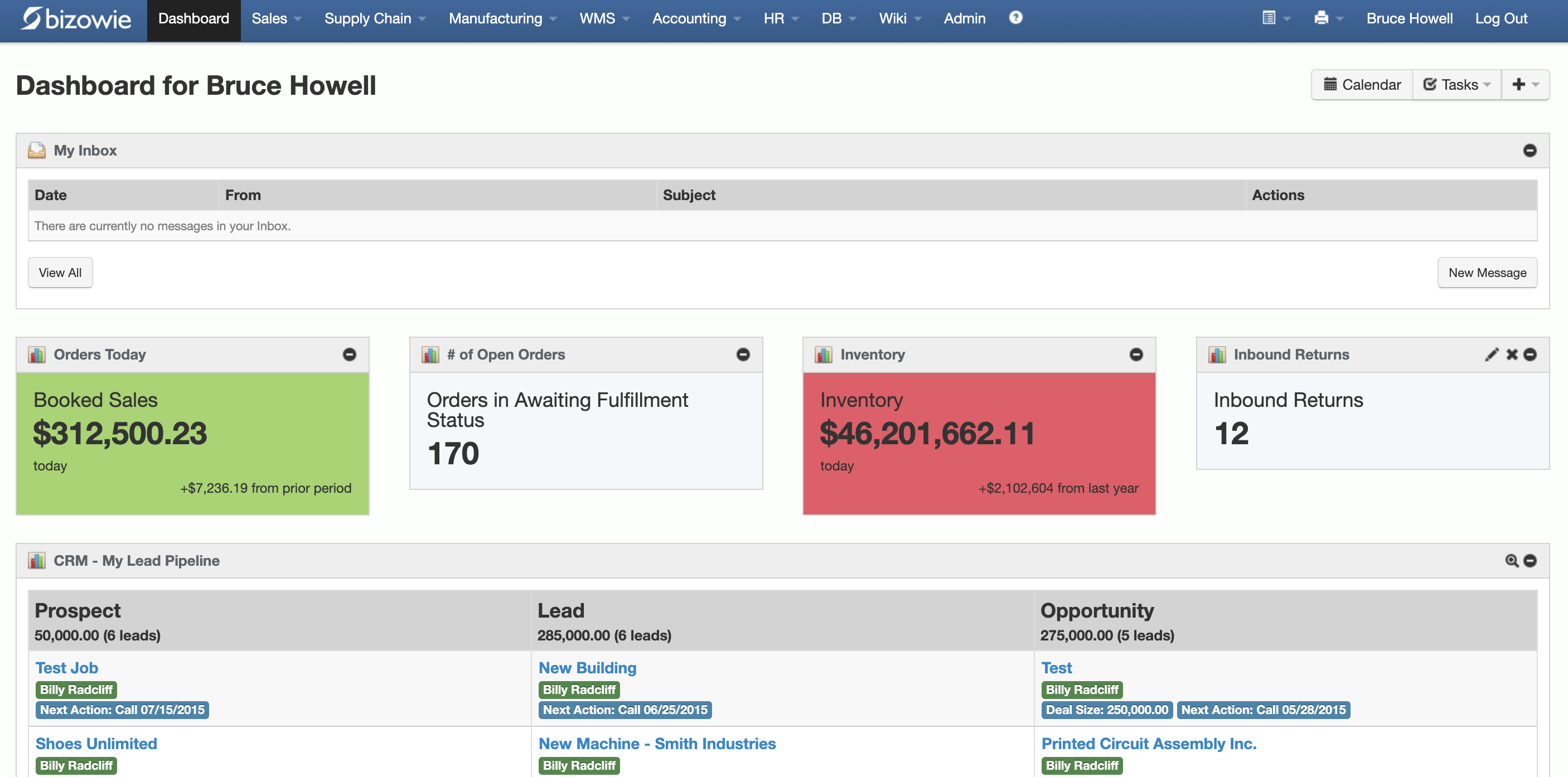
Live Dashboard
Bookings, open orders awaiting fulfillment, and inventory value at a glance.
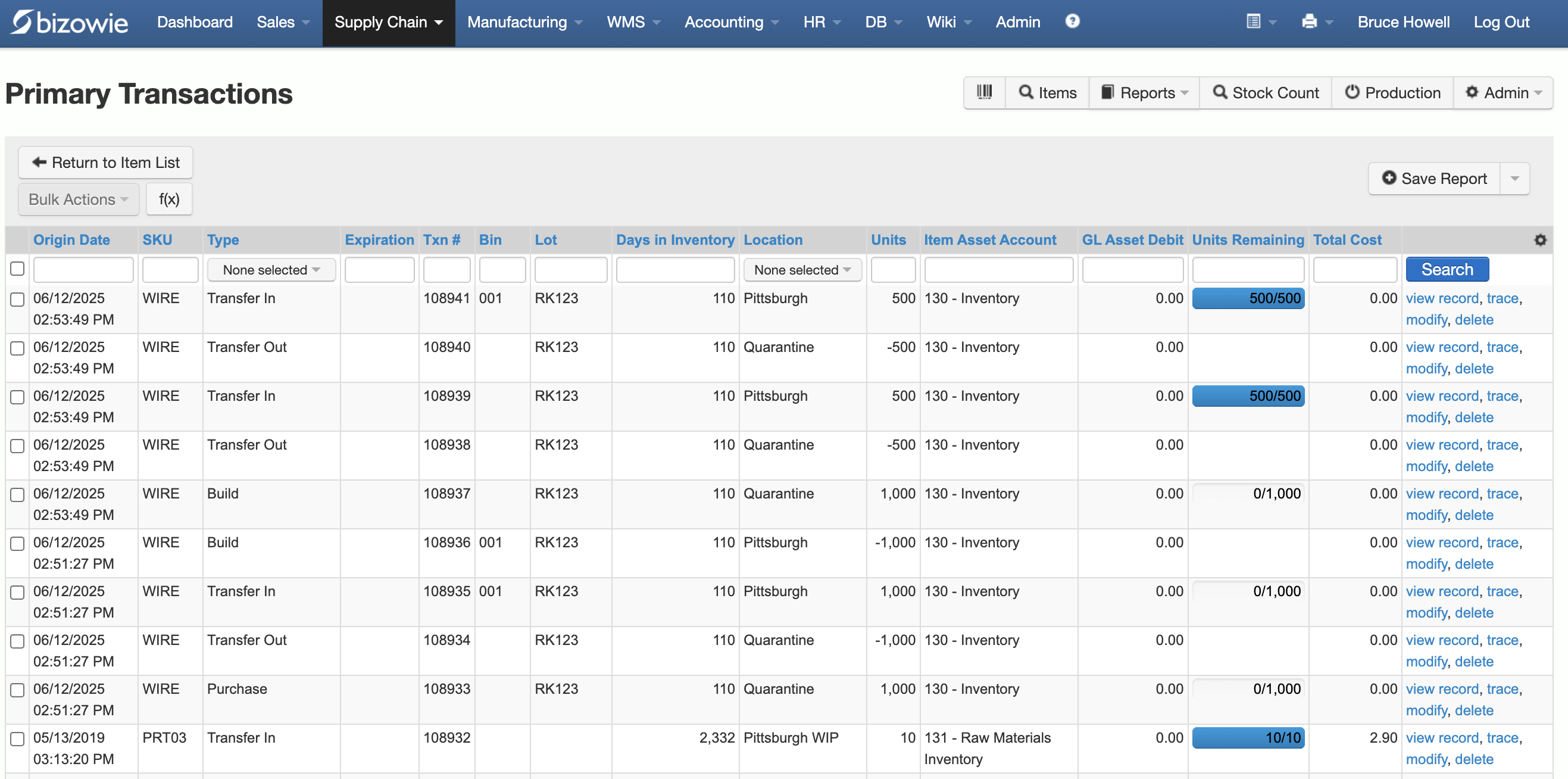
Inventory Transactions
Every receipt, transfer, build, and quarantine move by SKU, lot, bin, and location.
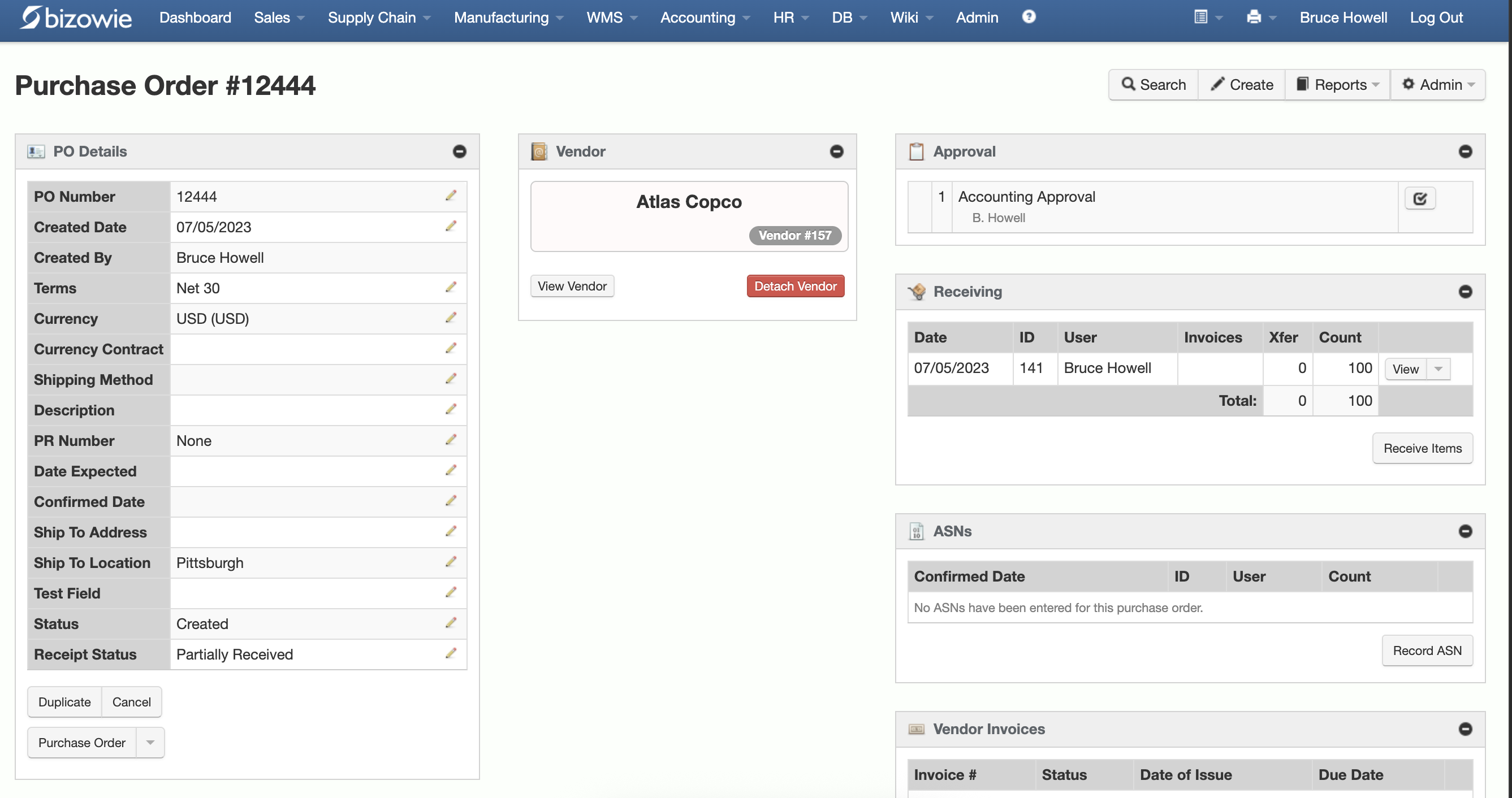
Purchasing & Receiving
Purchase orders with approvals, receiving, ASNs, and vendor invoices on one screen.
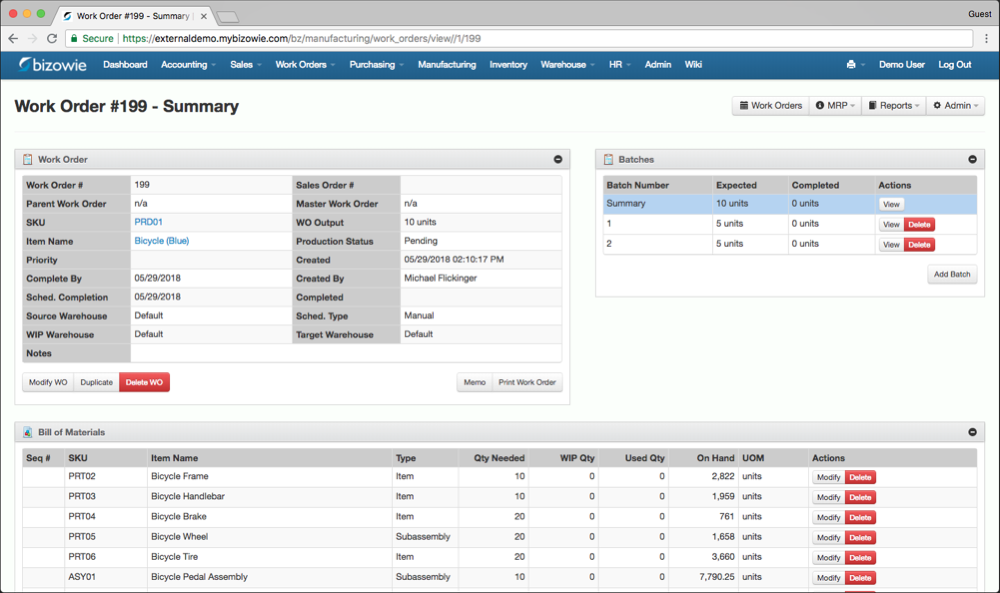
Work Orders & BOMs
Each work order carries its multi-level bill of materials, batches, and live on-hand quantities.
Common Cutover Mistakes
- Choosing a date before the plan is written
- Skipping the mock cutover
- Loading inventory nobody has counted
- Going live with known critical defects because the date was announced
- Too few support people on the floor in the first week
- Forgetting to tell trading partners and carriers about changes
“From our first contact all the way through to our implementation, Bizowie has been a first class organization to work with… We strongly recommend the Bizowie software program.”
Alan Seymour — President, Cleveland Electric Labs
How Bizowie Approaches Go-Live
Bizowie is implemented directly by the team that builds and supports the software, so the people who plan your cutover also know the platform. Because Bizowie is a cloud platform delivered as a service, there are no servers to install or prepare for go-live, and inventory, orders, warehouse operations, and financials run in one system, so there are fewer integrations to switch over on cutover weekend.
Frequently Asked Questions
How long does an ERP cutover take?
The cutover itself usually takes a few days, often over a weekend. Planning and rehearsing it takes weeks, and stabilization afterward takes a few weeks more.
What is a mock cutover?
A full rehearsal of the cutover using a copy of real data, timed and reconciled, so problems are found before the real go-live.
Should we run the old and new ERP in parallel?
Usually not for transaction-heavy businesses, because double entry is slow and error-prone. Thorough testing and a rehearsed cutover are generally safer.
When is the best time to go live with a new ERP?
At the start of a fiscal period, outside your peak season and year-end close, with key staff available for the following two weeks.
Plan Your Move With the Team That Builds the Software
Thinking about a new ERP? Tell us what you run today and when you need to be live. We’ll give you a realistic picture of what a move to Bizowie would involve, and if we are not the right fit, we will tell you.
Plan your move with us
For manufacturers and distributors. Tell us a little about your operation and we’ll reply with an honest assessment of fit, not a sales pitch.
- A real person reviews your submission and replies within one business day.
- No automated email sequences.
- If we’re not the right fit, we’ll tell you.
Prefer to talk?
Call (888) 635-2517, Mon–Fri, 9 AM–5 PM Eastern